Product & Features
How to Transfer Workspace Ownership to Customer Success
When a deal closes, the workspace that carried it should follow the relationship. How to transfer ownership in Kollab, when to do it, and what to tidy up first.
3 min read

Tanner Randall
Founder, Kollab
A deal closes. The workspace that carried it — the action plan, the pricing, the security answers, the thread with the buyer’s team — belongs to the rep who built it. Meanwhile the customer success manager who now owns the relationship starts from an empty folder and a call recording.
That handoff gap is where a lot of goodwill leaks out. The buyer answered the same questions twice. The implementation plan gets rebuilt from scratch. The context that took four months to accumulate stays in an account nobody on the CS team can open.
Transfer ownership moves the whole workspace to its next owner, so the handoff is a single action instead of a reconstruction project.
Where to find it
Open the workspace menu — the three dots at the top right of any workspace — and choose Transfer ownership.
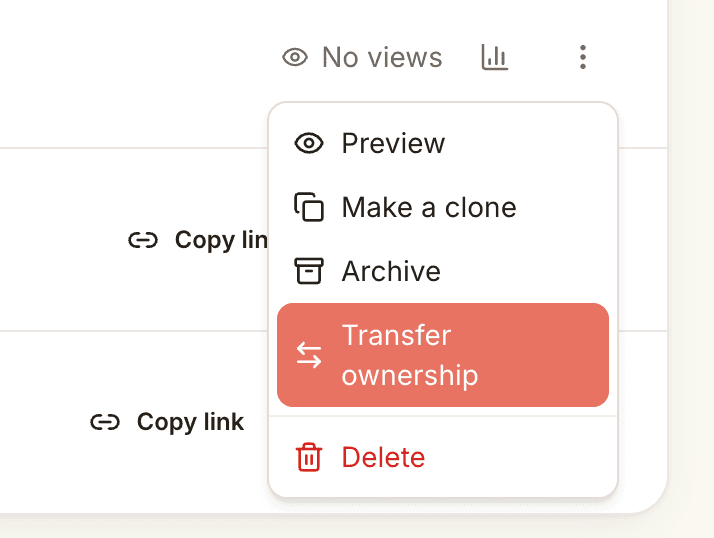
The same menu holds Preview, Make a clone, Archive and Delete, so it is worth knowing the difference between them before you reach for one.
Transfer ownership hands the existing workspace to someone else. Same link, same history, new owner.
Make a clone copies the structure into a new workspace. Use this when you want the layout again for a different account, not when you want to hand off this one.
Archive takes a finished workspace out of your active list without deleting anything.
What changes when you transfer
Three things are worth knowing before you hand a workspace over.
The new owner becomes the sole owner. Notifications stop reaching you entirely. Buyer activity, comments and engagement alerts all go to the new owner from that point, so treat this as a handover rather than a share.
The new owner needs a Kollab account. You can only transfer to an existing logged-in user, so make sure the CSM is set up before you go looking for their name.
The buyer is not notified. Nothing changes on their side and the link keeps working exactly as it did, which is normally what you want at a handoff.
Those three combine into one thing worth planning around. Because alerts follow ownership and the buyer never hears about the change, a workspace handed to someone who is not expecting it goes quiet in both directions. Tell the new owner it is coming rather than relying on them to notice.
When to use it
At close, not after onboarding starts. The most common mistake is transferring once implementation is already underway, by which point the CSM has rebuilt half the context manually. Transfer at signature.
When an account changes hands internally. Territory changes, someone leaving, a move from a pooled team to a named owner.
When the workspace outlives the deal. A buyer workspace that becomes the customer’s onboarding hub should belong to whoever runs onboarding.
What to do before you transfer
Two minutes of tidying makes the difference between handing over a resource and handing over a mess.
Close out the sales-stage action plan. Items that were relevant during evaluation are noise during implementation. Mark them complete or remove them.
Leave a note for the next owner. Who the stakeholders are, what was promised, what nearly derailed it. This is the part that is impossible to reconstruct from a CRM record.
Check what the buyer still sees. The workspace is a live link on their side. If it is about to become their onboarding hub, make sure the first thing they see reflects that rather than a closed-won sales page.