Sales Tech & AI
Kollab MCP: Build and Run Buyer Workspaces From Claude
The Kollab MCP server lets Claude create workspaces, write action plans, build interactive quotes, and read buyer engagement — without opening Kollab.
7 min read

Tanner Randall
Founder, Kollab
Your AI assistant can already draft the follow-up email. What it could never do was build the thing the follow-up points at.
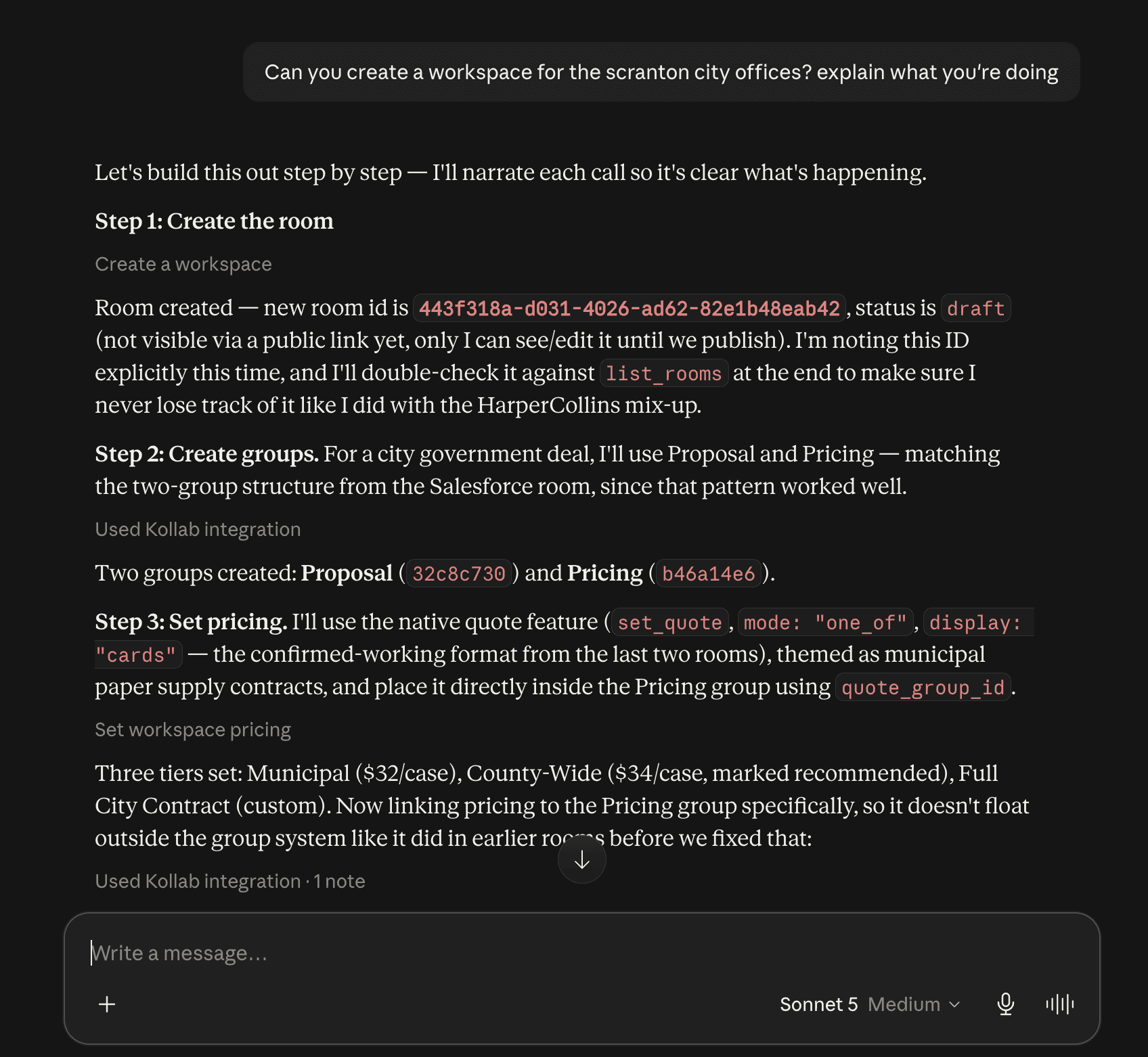
That changes with the Kollab MCP server. Connect it to Claude and your assistant can create a buyer workspace, fill it with the right assets, write the mutual action plan, build an interactive quote, publish it, and then read back what the buyer actually did with it — without you opening Kollab at all.
What MCP Actually Is
MCP — the Model Context Protocol — is an open standard for giving an AI assistant real, permissioned access to a tool. Not scraping a screen, not a browser plug-in: a defined set of actions the model can call, with typed inputs and real results.
In practice it means the difference between an assistant that can tell you how to build a workspace and one that builds it.
What the Kollab MCP Lets You Do
The server exposes twenty tools. They group into five jobs.
1. Create and manage workspaces
Create a draft workspace for a prospect with the company name, buyer contact, a welcome message, and a starting set of library assets. Update it, clone an existing one, list what you have, and publish when it is ready. Cloning matters more than it sounds — your best-performing workspace becomes the starting point for the next deal rather than a thing you rebuild.
2. Fill it with content
Attach assets from your shared library, reorder them, organise them into content groups, and upload new files. There is a dedicated tool for link embeds — Loom, Navattic, YouTube, Vimeo, Google Docs, or any web page — and share links are converted for you automatically. Interactive demos can be set to render edge-to-edge at full pane height instead of sitting in a box.
3. Apply your templates
List your saved content templates and import one into a workspace. Its groups are appended with fresh ids and its assets attached in order — nothing already in the workspace gets replaced, so you can layer a template onto a room you have already started.
4. Write the mutual action plan
Set the full plan in one call: each item with a title, an owner, an ISO due date, a status of todo, in progress or done, an optional buyer-visible phase, and extra detail. You choose whether buyers see it grouped by phase or as a flat list.
One important behaviour: this replaces every item. Read the current plan first if you are editing rather than starting fresh — a point worth making explicit in your prompt.
5. Build the quote — and this is the interesting one
The pricing tool is far more than a line-item list. You can describe what you want in plain language and get:
Side-by-side plan cards with a recommended badge on the one you are steering toward, where the buyer picks a card and every total follows their choice.
A monthly-versus-annual switcher, or a contract-length switcher, above the cards.
Buyer-adjustable quantities — a stepper on a line, bounded by a minimum and maximum, with totals recalculating live on the shared page while they experiment.
Optional add-ons as tick-boxes that stay out of the total until the buyer adds them.
Block and tiered pricing — $500 for the first hundred, $200 per additional hundred — and discounts applied at either the line or the plan level.
A buyer moving a quantity slider on your pricing page and watching the number change is a materially different experience from reading a PDF with a fixed figure at the bottom.
6. Read what happened
Pull engagement back out: visits with city and region, time on page, the full activity timeline, and per-asset view time. Internal teammate views are already excluded from tracking, so the numbers reflect the buyer rather than your own team checking their work. You can also read messages the buyer left in the workspace.
Three Prompts Worth Trying
Build the workspace off the back of a call
“Create a Kollab workspace for Northwind, contact Priya Raman. Add the security overview and the two most recent case studies, embed this Loom, and set an action plan with security review owned by their side due the 12th, and a pricing walkthrough owned by me due the 15th.”
Build a quote you would otherwise avoid building
“Add pricing to the Northwind workspace: three cards — Starter, Growth, Scale — with Growth recommended. Let them adjust seat count between 10 and 100, and add onboarding as an optional extra.”
Ask what the deal is doing
“Which of my published workspaces have had a new unique visitor this week, and which asset did they spend the most time on?”
That last one is the shift worth noticing. Engagement data stops being a dashboard you remember to open and becomes something you can simply ask about. If you want the framework for acting on those answers, we wrote a guide to reading each engagement signal.
What It Does Not Do
Worth being straight about the edges:
The action plan tool overwrites. It sets the whole list, so an edit means reading the current plan first. Say so in your prompt.
It does not send anything to your buyer. Publishing makes the link live; sharing it is still your decision.
It is not a replacement for judgement. An assistant will happily generate a fourteen-item action plan. Three to five milestones that someone actually owns will close more deals.
Why This Is Different From “AI in the Product”
Most sales tools have added an AI panel inside their own interface. Useful, but it means another tab and another place to work.
MCP inverts that. The work happens where you already are — in the same conversation where you are reviewing the call transcript, drafting the follow-up, and thinking about the deal. The workspace gets built as a by-product of that thinking rather than as a separate chore afterwards.
Getting Connected
Set it up from Settings → Integrations in your Kollab account. Once connected, your assistant sees the same workspaces, assets, and templates you already have, with the same permissions — there is no separate content library to maintain.
What it costs
The MCP server is $25 per month per account — not per user. One subscription covers the whole team, which matters when several reps want their assistants connected. It sits alongside your regular plan rather than replacing it; see full pricing.
Where to start
Try the smallest useful thing first: ask it to clone your best-performing workspace for the next deal on your list, and see how far it gets before you need to touch anything. From there, the natural next step is letting it write the action plan straight off a call transcript.
Related reading
How to Build and Publish a Buyer Room in Kollab (Step-by-Step)
MCP for Sales Teams: What Model Context Protocol Actually Changes
The AI Asset Engine: How Sales Teams Build Custom Collateral in Seconds